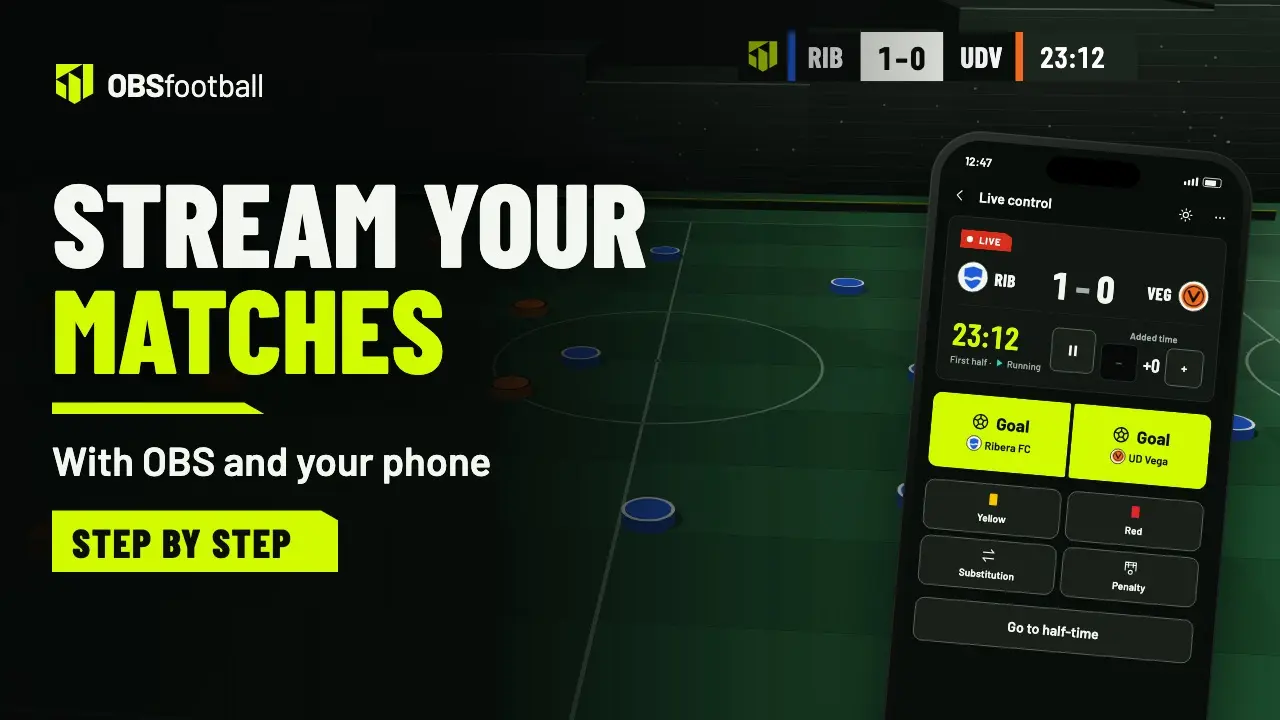
OBSfootball doesn’t stream the video: it puts the graphics and the control on top of the broadcast you make yourself with OBS. This guide follows the order in which everything is set up, from the equipment to the final whistle.
What you need
A computer with OBS Studio
OBS is free software for Windows, macOS and Linux. It’s where you combine the camera and the graphics.
A camera
A camcorder, a webcam or a phone that you connect to OBS as a camera.
A tripod
The higher and steadier it is, the easier it is to follow the ball.
Internet at the pitch
Club Wi-Fi or mobile data. What counts is the upload speed.
A channel to stream on
Your YouTube, Twitch or Kick channel.
A phone for the control
Yours, or the phone of whoever helps you. It opens in the browser, with nothing to install.
A microphone is optional. If the club already uses OBSfootball, ask to be invited as an operator and assigned the match: you run the live control without paying anything.
Where to put the camera
- High up. The higher you are, the easier it is to tell the plays and the players apart. A spot in the stands or an extended tripod helps.
- Midfield. Level with the halfway line and to one side, so both teams look about the same size.
- Sun behind you. If the sun is in front of the camera, the pitch looks dark and the players are backlit.
- Still. Lock the tripod in place and avoid moving it during the match. A steady frame is easier to follow.
- Space around the play. The scoreboard appears at the top left and the goal lower thirds at the bottom: don’t leave anything important there.
Set up OBS
In OBS you build a scene with two layers: your camera underneath and the OBSfootball graphics on top. The graphics are transparent: they only cover what they draw and let the camera show through everywhere else.
- OBSfootball · browser sourceTop layer · transparent · 1920 × 1080
- CameraBottom layer · the match video
- Create a new scene in OBS, for example “Match”.
- Add your camera as a video source.
- Add a browser source. In the Sources panel, choose Browser, paste the match’s private URL and set the width to 1920 and the height to 1080.
- Place it above the camera. In the Sources panel, whatever is higher in the list shows on top.
The URL is private and there is one per match: you copy it from the match itself, in OBSfootball. Until you press Start production, the source shows nothing and you only see the camera.
Connect your channel
OBS sends the video with the graphics to your channel. To do that it needs the stream key that the platform gives you. OBSfootball doesn’t host or stream the video.
- Camera and graphicsWhat goes into OBS
- OBSCombines the camera and the graphics in one scene
- Your channelYouTube, Twitch or Kick
- ViewersThrough the button on the match page
- Copy the stream key. It’s in your channel’s dashboard on YouTube, Twitch or Kick. Each platform shows it in a different place.
- Paste it into OBS. Open the Stream settings, choose the platform and paste the key.
- Add the channel link to the match. The match page will have a button to watch it on your channel.
Don’t share your stream key. Anyone who has it can stream on your channel.
Internet connection
The stream uploads video from the pitch, so what matters is the upload speed, not the download speed.
- Test it beforehand. Run a speed test in the same spot where you’ll stream and, if you can, at match time. Look at the upload speed.
- Choose a quality that fits. As a general reference, 1080p usually calls for several megabits of steady upload. These are approximate figures: each platform publishes its own.
- If it’s tight, lower the quality. Before the match, reduce the resolution or the stream bitrate in OBS. A simpler picture that never stops looks better than a sharp one that keeps cutting out.
- Wired is better. If the computer can use a cable instead of Wi-Fi, the connection is usually more stable. With mobile data, check the coverage at the pitch first.
- The control phone needs a connection too, but you lose nothing if it drops: what you tap is saved on the phone and sent when it’s back.
Set up the match in OBSfootball
Setting it up costs nothing and doesn’t use up a match. You can do it days ahead: it saves itself. A match is set up in seven steps, from Summary to Broadcast. The basics are these:
Regional League · Matchday 6 · Sun, Oct 11 · 12:30 · Riverside Park
- 1Summary
- 2Details
- 3Format
- 4Players
- 5Graphics
- 6Sponsors
- 7Broadcast
- Create your club. Name, crest and colors. You don’t need an account until you save: the draft waits 30 days in your browser.
- Create the match. Your team, the opponent, whether you play at home or away, the competition, the date, the time and the pitch.
- Add the players. Create shirt numbers 1 to 11 in one tap, paste a list or add the bench as 12 to 18. Names are optional and the opponent can go with shirt numbers only.
- Choose the starting eleven and the formation. There are nine formations, or you can leave the line-up as a list.
- Check the graphics in the preview. It’s free and doesn’t use up a match.
For the next match, duplicate this one and change only what needs changing.
If the team is made up of minors, ask the families for permission before streaming. The broadcast and its images are the responsibility of whoever makes it, not of OBSfootball. Player names are optional: you can use shirt numbers only.
Match day
- Camera locked on the tripod, framed, and charged or plugged in.
- OBS open with the scene set up: camera underneath and the OBSfootball source on top.
- Channel ready on the platform and the stream key pasted into OBS.
- Connection tested at the pitch.
- Graphics checked in the preview: line-ups, colors and names.
- Control open on the phone, signed in with Google or Twitch, and the battery charged.
- First start: with a welcome match or a Match Pass, the club owner does it.
When everything is ready, press Start production. Until then nothing shows in OBS. After that, start the match from the control: change the phase and start the clock.
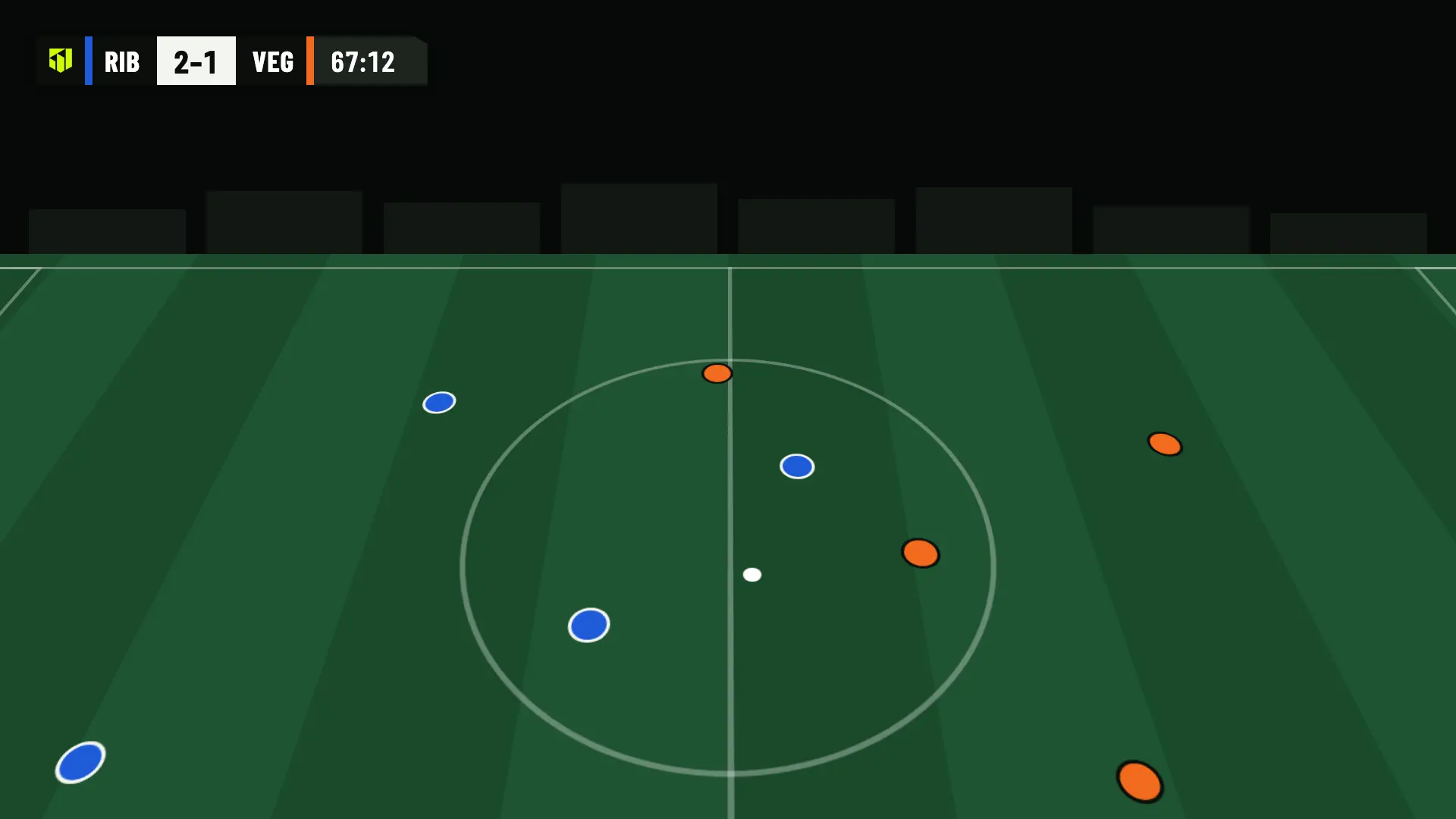
During play, tap Goal on the team that scores and choose the scorer by shirt number or by name. Cards, substitutions and penalties work the same way. The scoreboard and the lower thirds appear in OBS by themselves.
If you lose signal, don’t reload the control. What you log is saved on the phone and sent in order when the connection is back. If access to the match expires before that, those actions are discarded and the control warns you.
And if neither the control nor OBS connects for 5 minutes, the production stops and what you had logged is saved.
See live match controlAfter the final whistle
- Stop the production. End the stream in OBS and stop the production in OBSfootball. Stopping frees the live place.
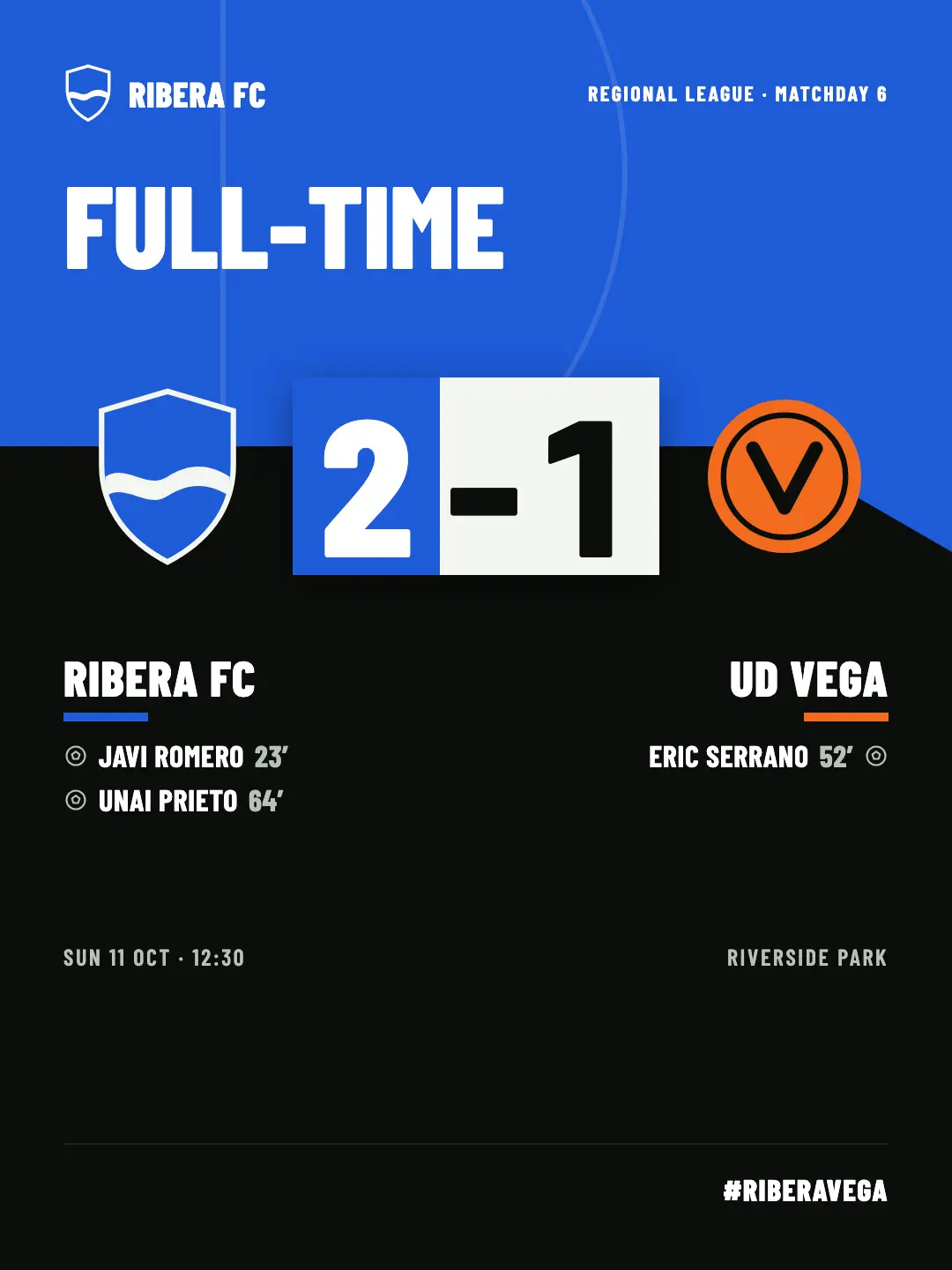
- Get the result image. With Pro or Studio, download it in the Instagram, portrait, square or story format, or share it from your phone. It comes with a suggested text and the alt text for screen readers.
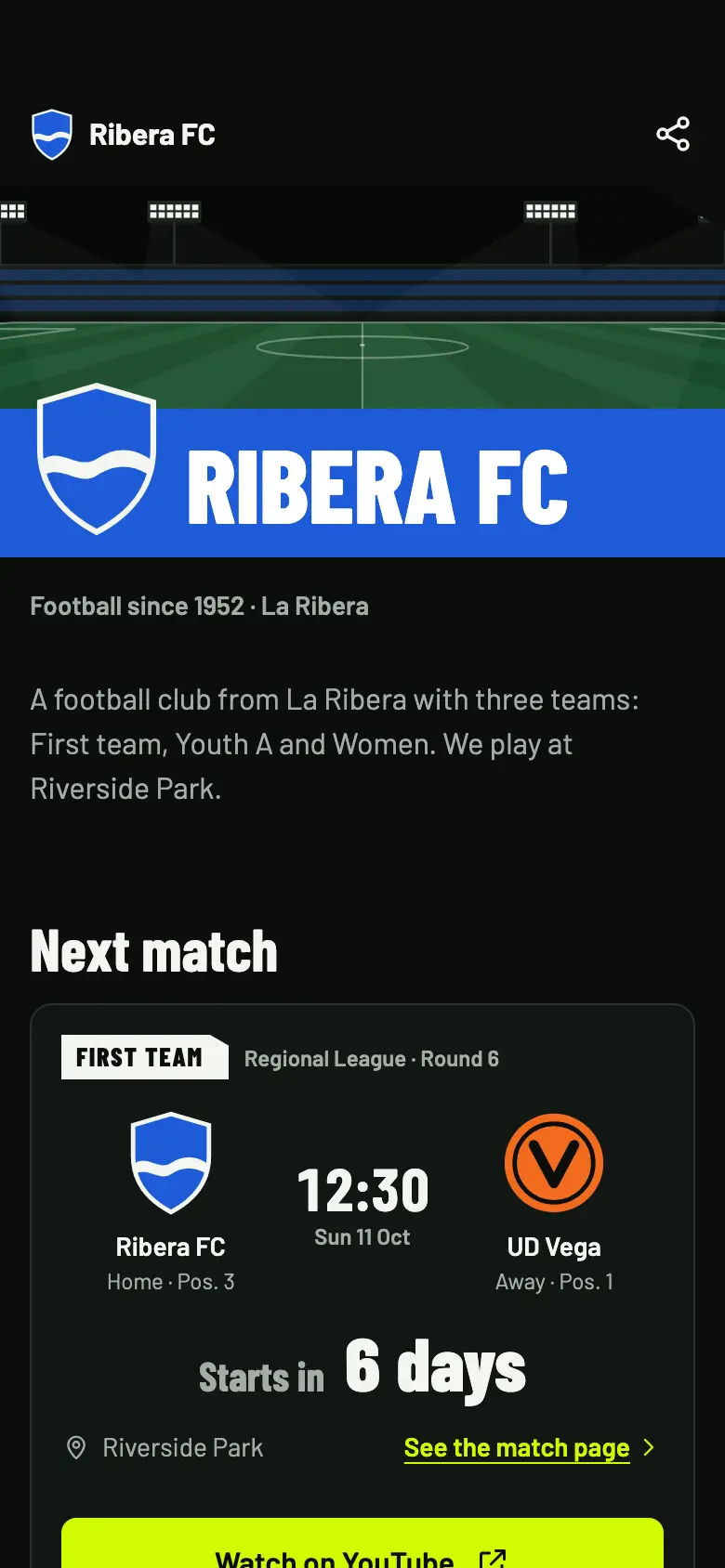
- Share the match page. If the match is published, its page keeps the result and the line-ups for anyone who couldn’t watch. Share it on WhatsApp, with a QR code or by copying the link.